
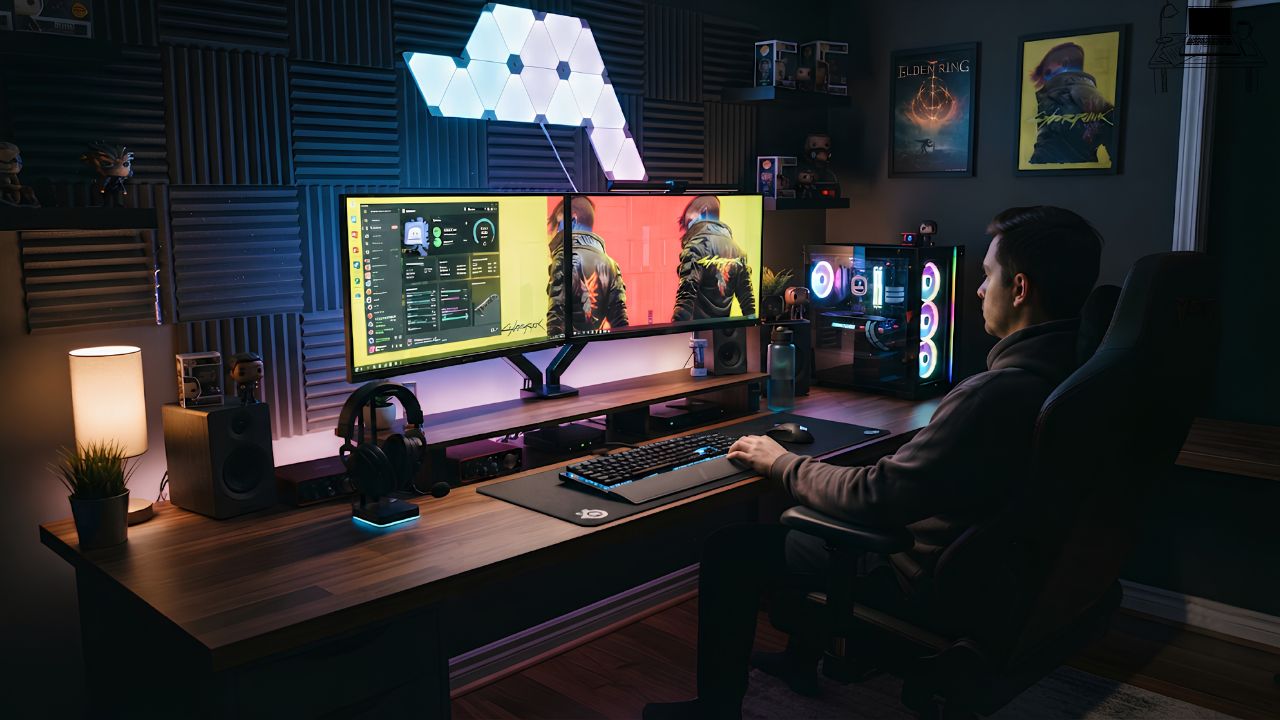
Setting up a great gaming station with two monitors can feel a bit tricky at first. You want it to look cool and work well, but figuring out where to start can be confusing. It’s totally normal to wonder how to arrange everything so it’s comfy and looks sharp.
This guide will make it super simple. We’ll break down how to get your ideal space ready, step by step.
The 12 Dual Monitor Gaming Desk Ideas
Creating the perfect gaming space is exciting, especially when you’re thinking about using two monitors. It opens up so much more room to play and work. Many people find themselves looking for fresh ideas when they’re putting their setup together.
You might wonder how to position the screens, what kind of desk to choose, or how to manage all the wires so it looks clean. This article is here to help you find lots of helpful suggestions. We’ll explore different ways to make your dual monitor desk both practical and stylish.
From choosing the right gear to organizing your space, we cover it all. Get ready to see how easy it can be to build a gaming area you’ll love.
1. Ergonomic Screen Placement
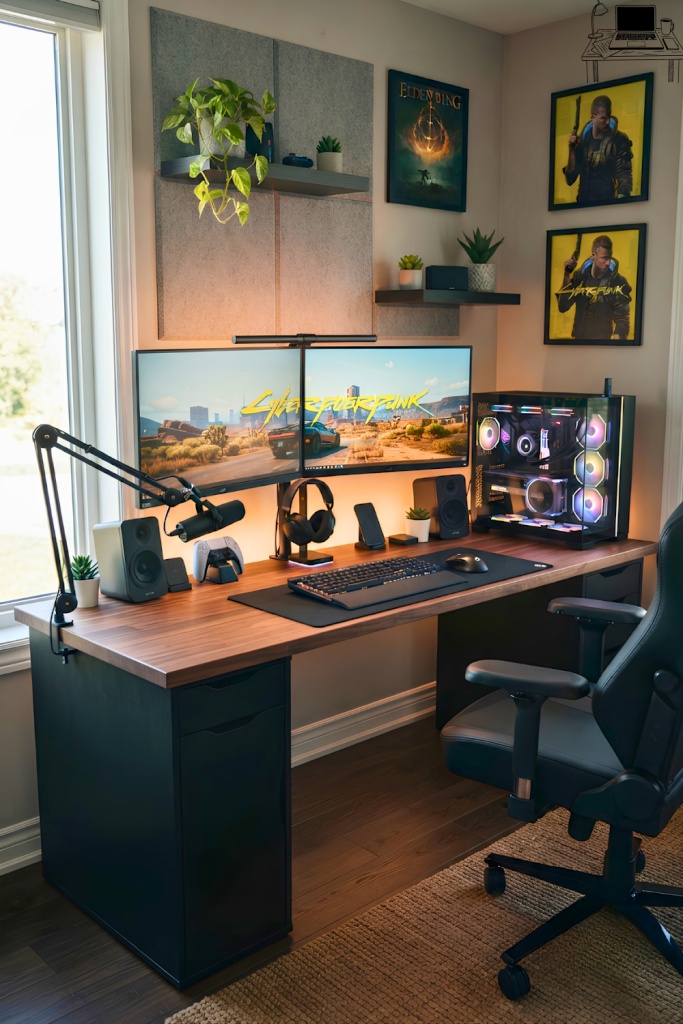
Getting your monitors in the right spot is super important for comfort and better gameplay. You want to avoid straining your neck or eyes. For two monitors, the main one should be directly in front of you, at eye level.
The second monitor can be slightly to the side, angled in towards you. This way, you don’t have to turn your head too much.
Think about your posture too. Your desk should be at a height where your elbows are at about a 90-degree angle when you type. Your feet should be flat on the floor.
This helps prevent back and shoulder pain during long gaming sessions. Good ergonomics make a huge difference in how long you can play without feeling tired.
For example, if your main monitor is at 24 inches, placing a secondary 24-inch monitor to its right means you might only need to turn your head slightly. If you have a larger ultrawide as your primary, a smaller vertical monitor to the side can be a great addition without requiring much head movement. Screen height is often adjusted using monitor stands or arms.
Eye Level Placement: The top edge of your main monitor should be at or slightly below your eye level. This helps keep your neck in a neutral position.
When a monitor is too high, you tilt your head up. This can lead to neck strain and headaches over time. Keeping the top edge aligned with your eyes is a simple fix that greatly improves comfort.
Viewing Distance: Aim for about an arm’s length away from your screens. Too close can strain your eyes, and too far makes it hard to see details.
The ideal viewing distance also depends on the size and resolution of your monitors. For Full HD monitors, around 2-3 feet is good. For 4K monitors, you can sometimes sit a bit closer to appreciate the detail without seeing individual pixels.
Angle the Secondary Monitor: Position your second monitor so it’s angled slightly inwards, towards your primary screen.
This creates a more immersive viewing angle and reduces glare from room lights. It also makes it easier to glance at the secondary screen without losing focus on your main display.
2. Desk Size and Depth Matters
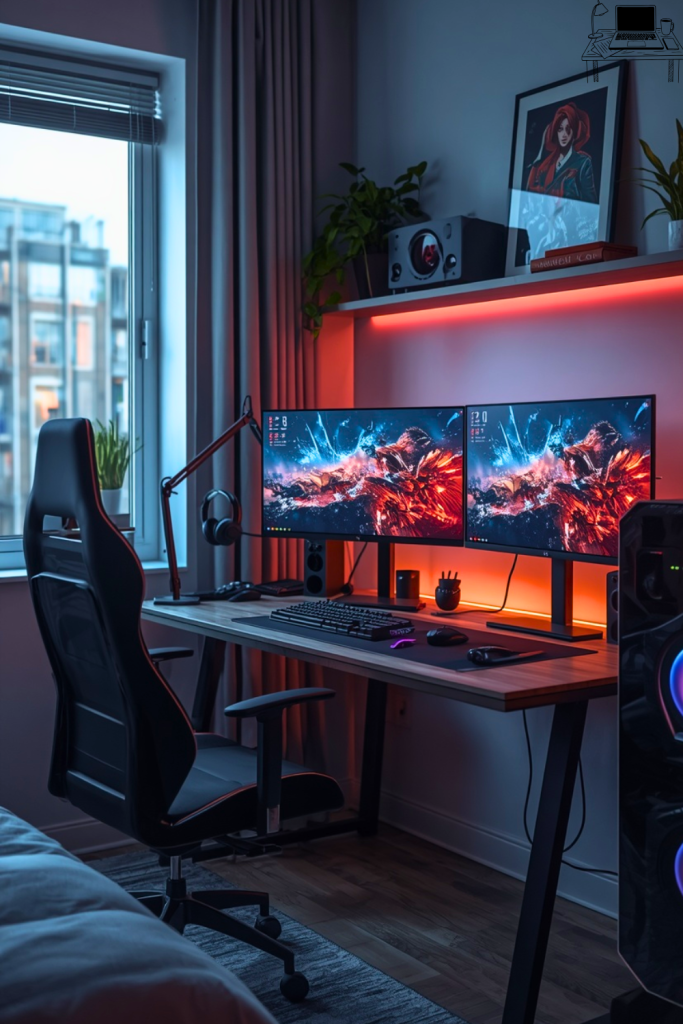
When you’re planning for two monitors, the size of your desk is really important. You need enough space not just for the monitors themselves, but also for your keyboard, mouse, speakers, and any other gear you use. A desk that’s too small will feel cramped and make everything feel messy.
Depth is also key. You want a desk deep enough so that your monitors aren’t too close to your face. This is for eye comfort and also gives you space to place your keyboard and mouse without your arms feeling like they’re hanging off the edge.
A common recommendation for gaming desks with dual monitors is at least 60 inches wide.
Consider the footprint of your monitor stands too. Some stands are quite large. If you have monitors with thin bezels and a minimalist stand, you might get away with a slightly smaller desk.
However, it’s always better to have a bit more space than not enough. Think about future upgrades too; maybe you’ll want a bigger mousepad or an extra peripheral.
Width is Crucial: For a dual monitor setup, a desk width of at least 60 inches is often recommended. This gives you ample room for two standard monitors side-by-side.
A 60-inch desk can comfortably fit two 27-inch monitors with some space between them and room on the sides for accessories. If you plan on using very large monitors, consider desks 72 inches or wider.
Depth for Comfort: A desk depth of 24 to 30 inches ensures you have enough space between your eyes and the screens.
This distance is vital for reducing eye strain and maintaining good posture. A deeper desk also allows for better cable management and prevents your keyboard from feeling too close.
Consider L-Shaped Desks: If you need a lot of space or want to divide your setup (e.g., gaming on one side, work on the other), an L-shaped desk can be a great option.
These desks offer a significant amount of surface area and allow for flexible monitor placement and workstation zones. They are particularly useful in smaller rooms where you need to maximize usable space.
3. Cable Management Solutions
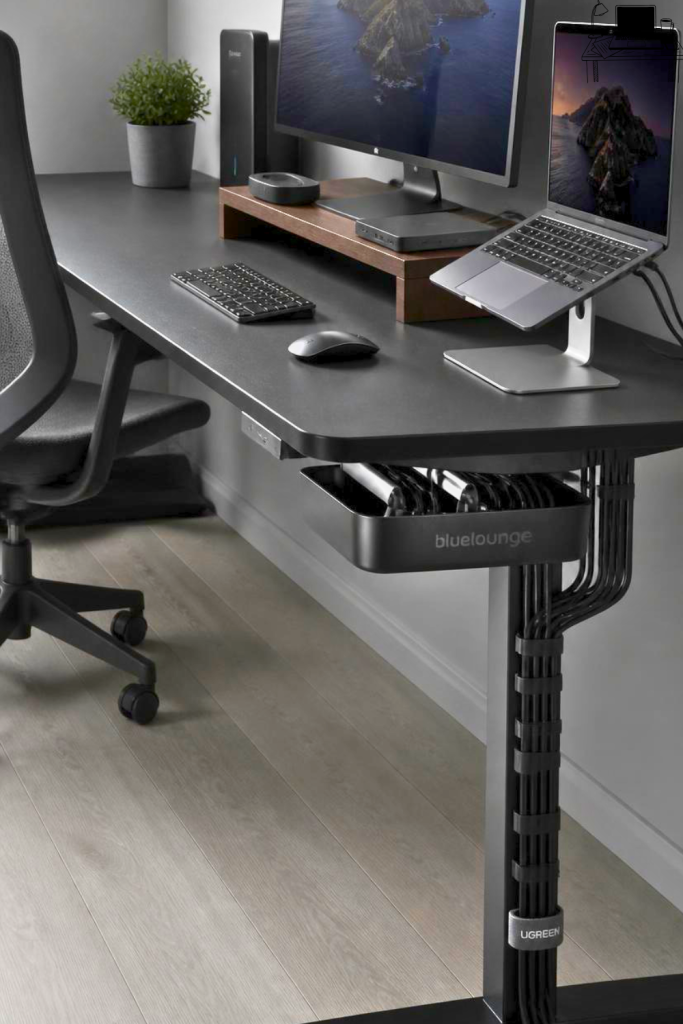
Tangled wires can quickly ruin the clean look of any gaming setup, especially with two monitors. Finding good cable management solutions is a must. This involves hiding or organizing all the cables from your monitors, computer, keyboard, mouse, and anything else you have plugged in.
There are many ways to tackle this. You can use cable ties, Velcro straps, or raceways that stick under your desk. Some desks even come with built-in cable management features.
The goal is to keep wires neat and out of sight, making your setup look much more professional and tidy. It also makes cleaning your desk easier!
Imagine having two monitors, a PC, a gaming console, a microphone, and a stream deck – that’s a lot of cables! Using a combination of under-desk trays and cable sleeves can make a huge difference. You can group cables together so they look like one neat bundle instead of a messy tangle.
This not only looks better but can also prevent accidental unplugging.
Under-Desk Cable Trays: These mount underneath your desk and provide a place to hold power strips and excess cable length.
They are fantastic for keeping cables off the floor and out of sight. You can often fit multiple power strips in larger trays, allowing you to plug in all your devices neatly.
Cable Sleeves and Wraps: These are tubes or wraps that hold multiple cables together, creating a single, cleaner bundle.
They come in various materials like fabric or plastic and can be used to route cables from your desk to your PC or from your monitors down to your desk. They’re great for managing the main bundles of wires.
Adhesive Cable Clips and Raceways: These stick to the back or underside of your desk to guide and hold individual cables in place.
They are useful for keeping specific cables (like monitor power cords or USB cables) routed exactly where you want them, preventing them from dangling or getting tangled with other wires.
4. Lighting for Ambiance
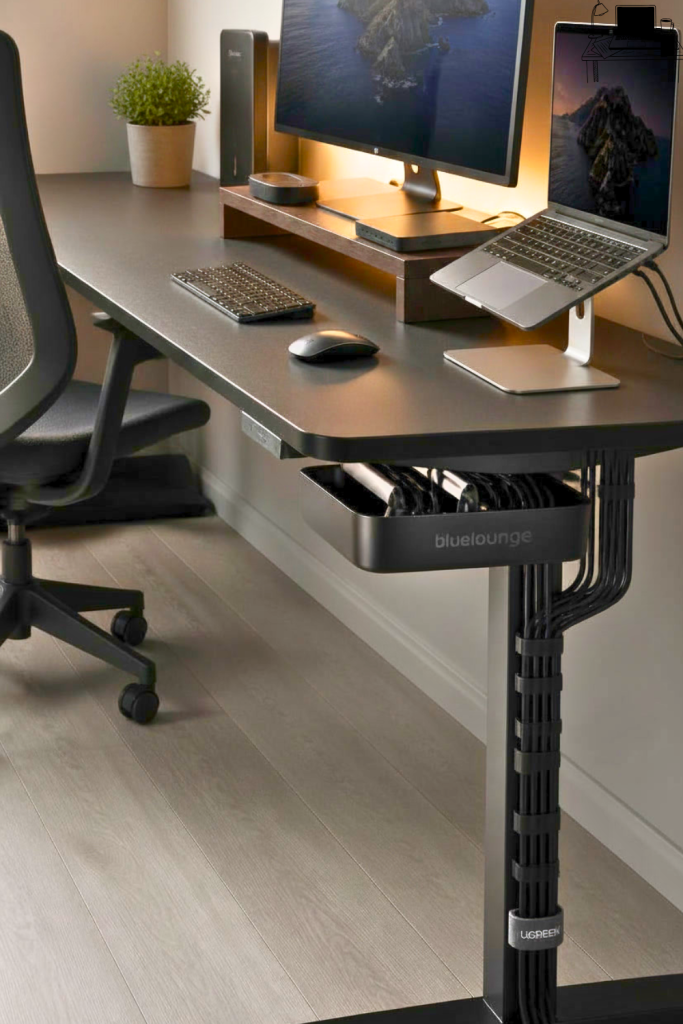
The lighting in your gaming space sets the mood and can even affect your gaming experience. For a dual monitor desk, you’ll want to consider both functional lighting and ambient lighting. Functional lighting helps you see your keyboard and mouse clearly, while ambient lighting creates a cool atmosphere.
Many gamers opt for LED strip lights that can be placed behind their monitors or around the desk. These lights often come with remote controls or smartphone apps, allowing you to change colors and brightness. This can help reduce eye strain by providing a softer light source in the room and make your setup look more visually appealing.
For example, setting your LED lights to a soft blue or purple can create a calming environment for late-night gaming. If you’re streaming, dynamic RGB lighting can add a professional and engaging touch to your background. It’s all about creating a space that feels comfortable and inspiring for you.
Bias Lighting: Placing LED strips behind your monitors can create a subtle glow that reduces eye strain by lessening the contrast between the bright screen and dark room.
This technique, known as bias lighting, makes it easier for your eyes to adjust to different light levels and can improve perceived contrast and color accuracy.
RGB Desk Lighting: Many desks and accessories now feature integrated RGB lighting, allowing for customizable colors and effects.
This can transform the look and feel of your setup, matching your mood or game. Some systems can even synchronize lighting with in-game events.
Task Lighting: A small desk lamp can provide focused light for tasks like reading manuals or quick adjustments without disrupting your main display.
It’s important to position task lighting so it doesn’t create glare on your monitors. A flexible gooseneck lamp is often a good choice for this.
5. Monitor Mounts for Flexibility
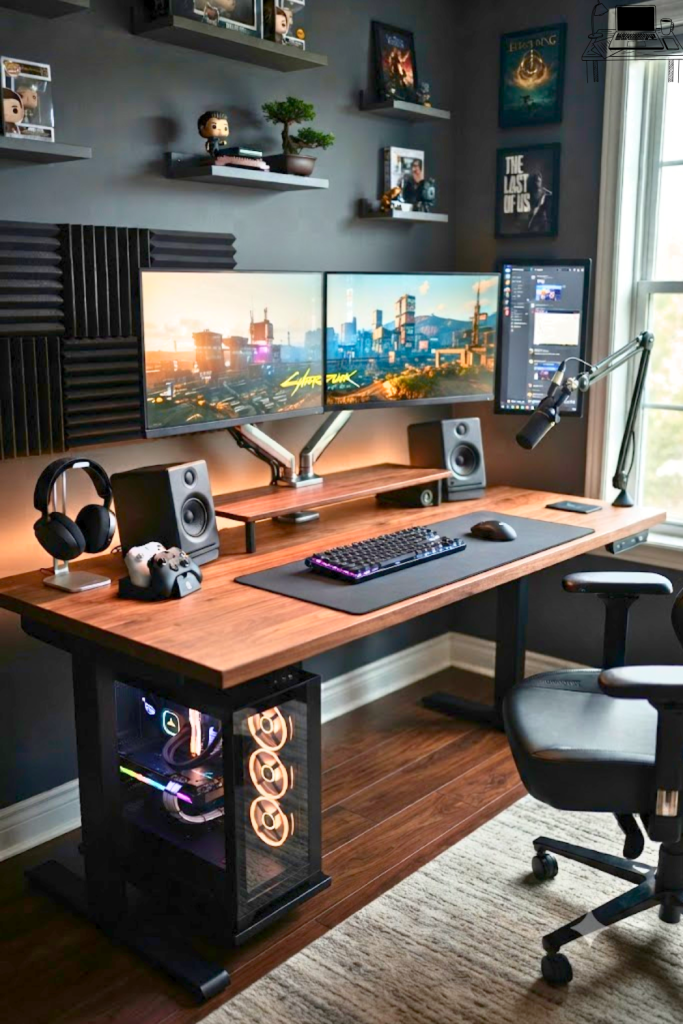
Monitor mounts are a fantastic addition to any dual monitor desk setup. They free up desk space that would otherwise be taken up by bulky monitor stands. Plus, they offer a lot more flexibility in how you position your screens.
You can get single mounts that hold two monitors, or individual mounts for each screen. These mounts allow you to adjust the height, tilt, and swivel of your monitors easily. This makes it simple to find the perfect viewing angle and position for maximum comfort and immersion.
Some mounts even allow you to swing your monitors out of the way when not in use.
For instance, a dual monitor arm can allow you to stack one monitor above the other if desk width is limited, or place them side-by-side. It’s also easier to clean your desk when the monitors are raised up. This makes a big difference in keeping your workspace tidy and professional.
Dual Monitor Arms: These single units can hold two monitors, allowing for precise positioning and freeing up desk space.
They are ideal for gamers who want to arrange their screens in various configurations, such as side-by-side or stacked vertically. Most arms offer a good range of motion.
Ergonomic Adjustments: Monitor mounts allow you to adjust height, tilt, and swivel easily to find the most comfortable viewing position.
This adjustability is key for preventing neck and eye strain, especially during extended gaming sessions. You can fine-tune the position for optimal ergonomics.
Space Saving Benefits: Removing monitor stands from your desk surface creates more room for your keyboard, mouse, and other peripherals.
This results in a cleaner and more organized desk aesthetic, allowing for better airflow around your equipment as well.
6. Keyboard and Mouse Comfort
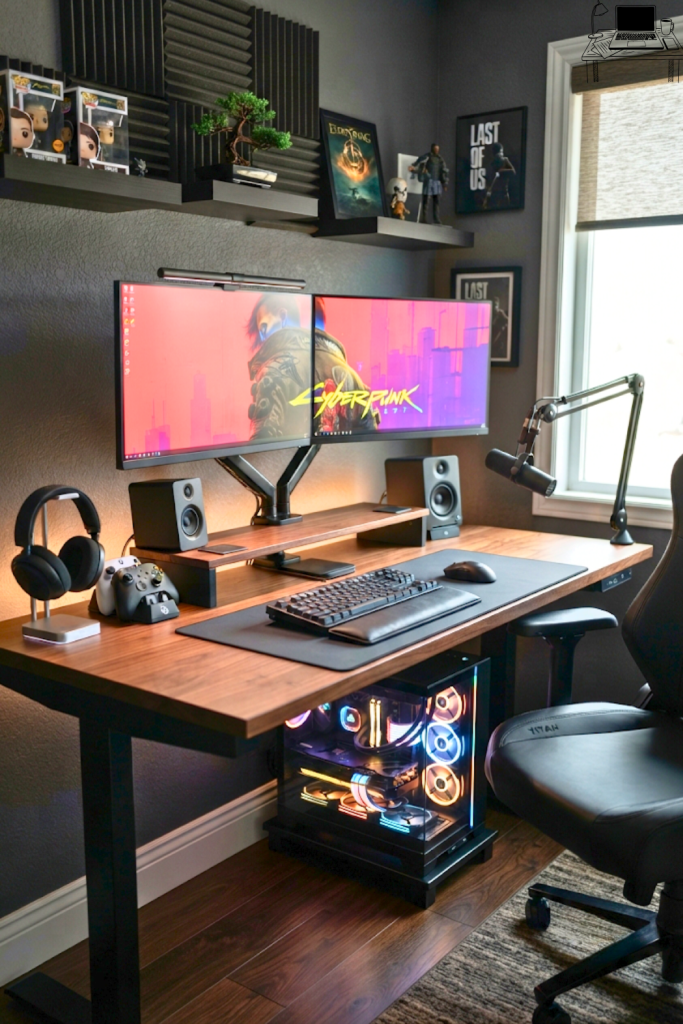
Your keyboard and mouse are your primary tools in any gaming setup. For a dual monitor desk, ensuring they are positioned comfortably is just as important as screen placement. You want to avoid wrist strain and allow for quick, precise movements.
The ideal placement is directly in front of your primary monitor. Your keyboard should be at a height that allows your wrists to remain straight. A comfortable wrist rest can also be a great addition for longer gaming sessions.
Similarly, ensure your mouse has enough space to move freely without bumping into anything.
For example, if you play a lot of fast-paced games, having a large gaming mousepad that extends under your keyboard and mouse can provide a consistent surface. This ensures smooth tracking and prevents your mouse from falling off the edge. Some gamers even prefer angled keyboard trays to further optimize wrist posture.
Wrist Posture: Keep your wrists straight and relaxed while typing and gaming. Avoid bending them up, down, or sideways.
Using a wrist rest can help maintain a neutral position, reducing pressure on your carpal tunnel. The height of your desk and chair should work together to achieve this.
Mousepad Size: A large gaming mousepad offers ample space for sweeping mouse movements, crucial for many games.
It also helps to prevent your mouse from snagging on desk edges or cables. A good mousepad enhances both control and speed.
Keyboard Tray Options: An adjustable keyboard tray can allow you to set the height and angle of your keyboard independently of the desk.
This is particularly useful if your desk height isn’t perfectly suited for your seated posture, offering a custom fit for maximum comfort.
7. Dual Monitor Setup Software
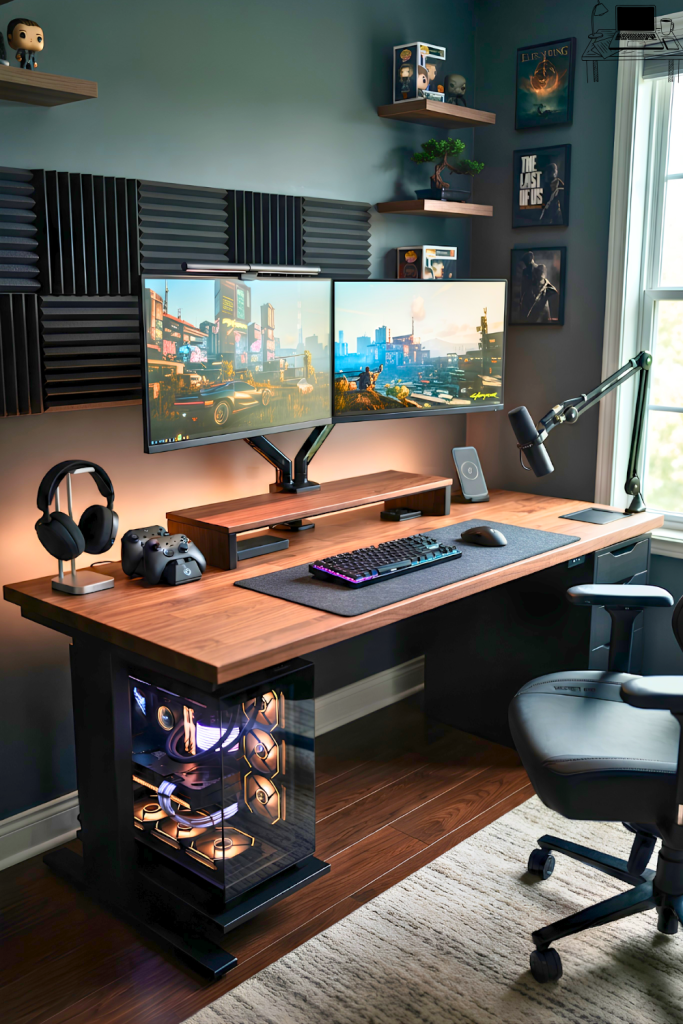
Beyond the physical setup, the software you use can greatly enhance your dual monitor experience. For gaming, this often means configuring your display settings and using specific tools to manage your screens effectively.
Windows has built-in features for managing multiple displays, like extending your desktop across both monitors. You can also adjust resolution, refresh rates, and orientation for each screen. Some graphics card control panels, like NVIDIA Control Panel or AMD Radeon Software, offer even more advanced options for multi-monitor configurations.
For instance, you can set up specific game profiles that automatically adjust settings when a game is launched. Many gamers also find third-party tools useful, such as DisplayFusion, which offers features like advanced wallpaper management across multiple screens, multi-monitor taskbars, and custom hotkeys for window management. This software can truly elevate the functionality of your dual monitor setup.
Display Extension vs. Duplicate: Understand the difference between extending your desktop (two separate screens) and duplicating (same content on both).
For gaming, extending is almost always preferred to give you more space for games, chat windows, or streaming software. Duplicating is rarely used for dual monitor gaming setups.
Graphics Card Software: Utilize NVIDIA Control Panel or AMD Radeon Software for advanced settings like refresh rate synchronization and resolution scaling.
These tools allow for fine-tuning of your display’s performance, ensuring the smoothest possible gaming experience across both monitors.
Window Management Tools: Software like DisplayFusion can create a multi-monitor taskbar, allow custom wallpaper spanning, and offer hotkeys for snapping windows to specific screen areas.
These utilities are designed to make managing multiple displays much more intuitive and efficient for productivity and gaming.
8. Desk Material and Durability
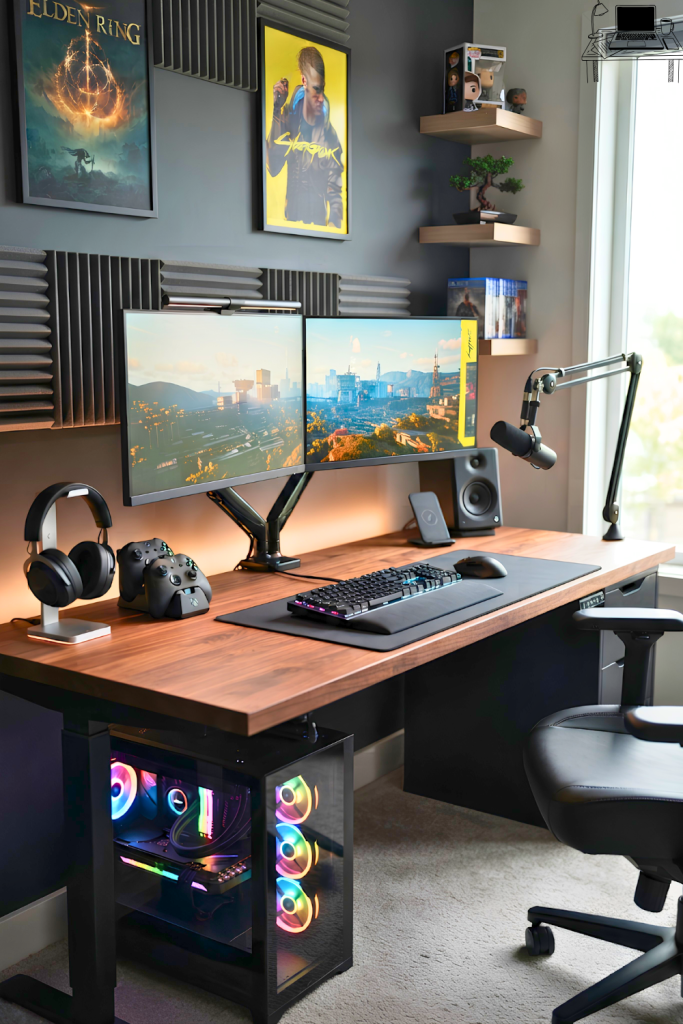
The material of your desk plays a role in its durability, stability, and overall aesthetic. For a gaming setup with dual monitors, you need a desk that can reliably support the weight of your equipment and withstand regular use.
Common desk materials include wood (like MDF, particleboard, or solid wood), metal, and even glass. Solid wood desks are generally the most durable and can support heavy loads, but they are also the most expensive. Metal desks offer excellent stability and a modern look.
Particleboard or MDF desks are more budget-friendly but may be less durable over time.
When choosing, consider the total weight of your setup. Two monitors, a powerful PC, and other peripherals can add up. A desk with a sturdy frame, often made of steel, is a good investment.
A smooth, easy-to-clean surface is also a plus, especially for gamers who might spill drinks or snacks.
Solid Wood vs. Engineered Wood: Solid wood offers the best durability and weight capacity, while engineered wood (MDF, particleboard) is more affordable but less robust.
If you plan on having multiple heavy monitors and a powerful PC, investing in a solid wood or heavy-duty engineered wood desk with a strong frame is wise.
Metal Frame Stability: Desks with robust metal frames provide superior stability and support for multiple monitors and gaming gear.
A well-constructed metal frame prevents wobbling, which is essential for a steady gaming experience and for protecting your equipment.
Surface Finishes: Look for durable, scratch-resistant finishes like laminate or melamine that are easy to wipe clean.
These finishes help protect the desk surface from everyday wear and tear, spills, and scratches, keeping your setup looking good for longer.
9. Speaker Placement for Immersive Sound
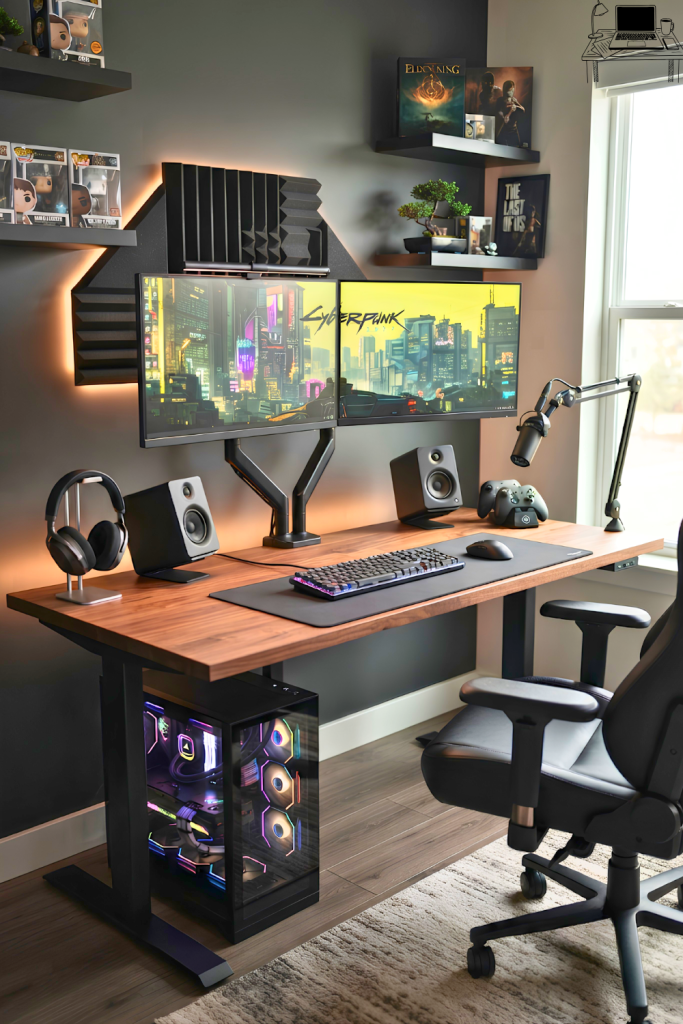
Good sound is a big part of the immersive gaming experience, and where you place your speakers matters. For a dual monitor desk, you have a few options to get the best audio without cluttering your setup.
If you’re using desktop speakers, placing them on either side of your monitors at ear level is generally ideal. This creates a stereo soundstage that helps you pinpoint in-game sounds, like footsteps or enemy fire. Avoid placing speakers too close to your monitors, as the vibrations can sometimes interfere with display performance.
Alternatively, many gamers opt for high-quality headphones for a more personal and immersive audio experience. If you use headphones, consider a headphone stand or hook to keep them accessible and organized. For surround sound setups, strategic placement of multiple speakers is key, though this can be more challenging on a standard desk.
Stereo Soundstage: Position speakers to the left and right of your main monitor, angled towards your seated position.
This creates an effective stereo field, allowing sounds to appear to come from different directions, enhancing immersion and positional awareness in games.
Monitor Interference: Keep speakers a few inches away from your monitors to avoid potential magnetic interference, especially with older CRT displays.
Modern LCD and OLED monitors are less susceptible, but maintaining some distance is still good practice for optimal audio and display quality.
Headphone Integration: If using headphones, a headphone stand or a clip-on hook on the side of your desk keeps them tidy and easily accessible.
This prevents cables from tangling and makes switching between speakers and headphones seamless.
10. Dual Monitor Gaming Display Settings
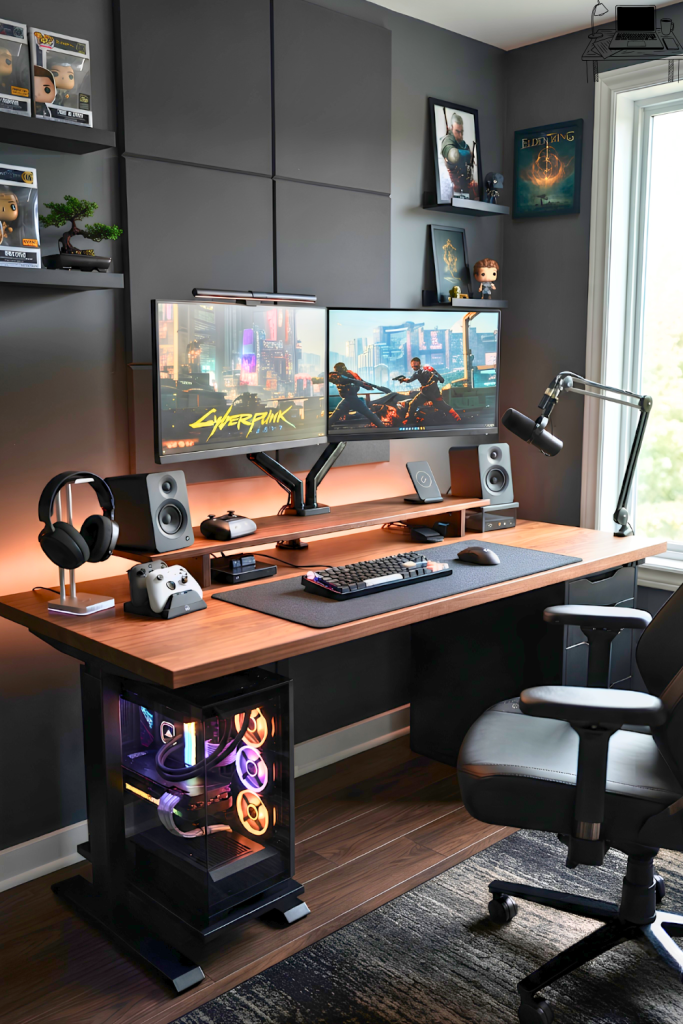
Optimizing your display settings is crucial for a smooth and visually stunning gaming experience on a dual monitor setup. This goes beyond just setting the resolution; it involves fine-tuning refresh rates, response times, and color profiles.
For gaming, you’ll want to set both monitors to their highest possible refresh rate (e.g., 144Hz, 240Hz) to ensure fluid motion and reduce motion blur. Ensure that your graphics card is capable of outputting these refresh rates to both displays simultaneously. You may also need to configure VSync or Adaptive-Sync technologies like NVIDIA G-Sync or AMD FreeSync.
These technologies help synchronize your monitor’s refresh rate with your graphics card’s frame output, eliminating screen tearing and stuttering. Some games may require specific settings adjustments for multi-monitor setups, such as aspect ratio or field of view adjustments to prevent distortion on the secondary display if it’s not used for the game itself.
Refresh Rate Synchronization: Set both monitors to their highest native refresh rate for the smoothest visuals.
This makes fast-paced action appear much clearer, reducing blur and improving your reaction time. Ensure your graphics card and cables support the chosen refresh rates.
Adaptive Sync Technologies: Enable G-Sync or FreeSync to prevent screen tearing and stuttering by syncing monitor refresh rates with GPU frame rates.
This is vital for an immersive gaming experience, as it ensures frames are displayed without visual artifacts.
Game-Specific Settings: Some games allow you to choose which monitor to display the game on or offer multi-monitor configurations.
Experiment with these settings to find what works best. For games that don’t support multi-monitor well, you can use the secondary screen for chat, guides, or streaming software.
11. Storage and Organization Solutions
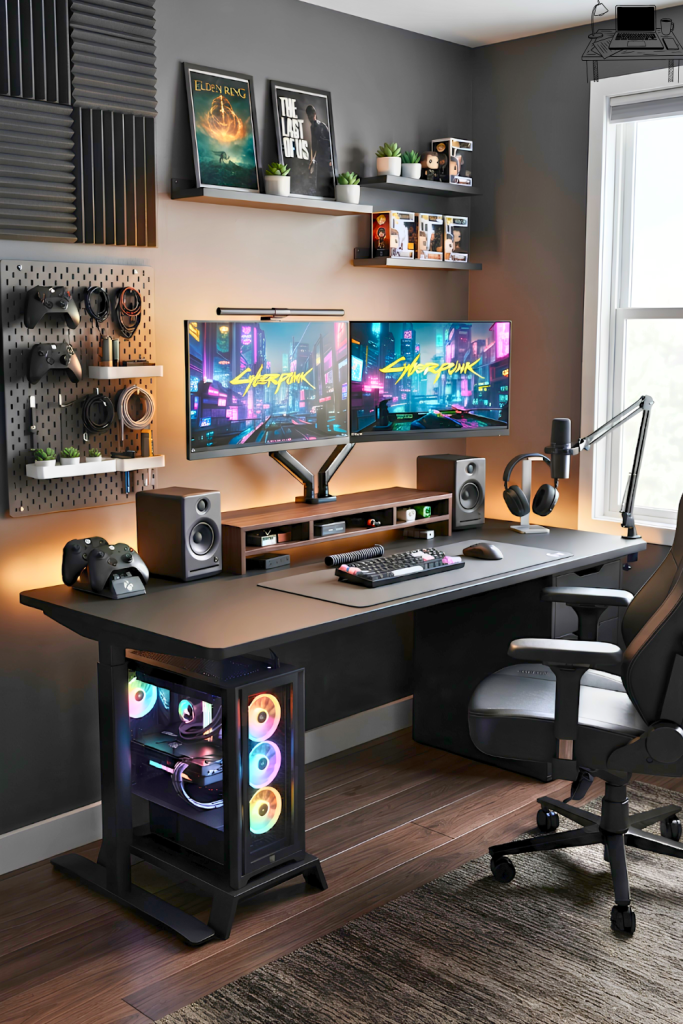
Beyond just the screens and peripherals, efficient storage and organization on your dual monitor desk can make a big difference. Keeping your space tidy means less distraction and more focus on your game.
Consider adding drawer units, shelving, or pegboards to your desk setup. These can be used to store game controllers, extra headsets, charging cables, or even decorative items. A good organization system helps keep frequently used items within easy reach while keeping clutter at bay.
For instance, a small desk shelf can elevate your monitors slightly further and provide space underneath for storing a keyboard when not in use, or for a small PC. Pegboards are excellent for mounting accessories like headphones, microphones, or even game cases. Think about what you use most often and design your storage around that.
Drawer Units and Shelves: Add small drawers or shelves to your desk to keep small items organized and out of sight.
These are perfect for storing USB drives, spare batteries, pens, or other small accessories that tend to clutter a desk surface.
Pegboards and Wall Mounts: Utilize vertical space with pegboards or wall mounts to hang accessories like headphones, microphones, or controllers.
This frees up valuable desk space and keeps your essential gaming gear readily accessible and neatly displayed.
Controller Stands and Charging Docks: Dedicated stands or docks for your game controllers keep them charged and organized when not in use.
This prevents them from being misplaced or cluttering up your desk, ensuring they are always ready for your next gaming session.
12. Dual Monitor Desk Aesthetics
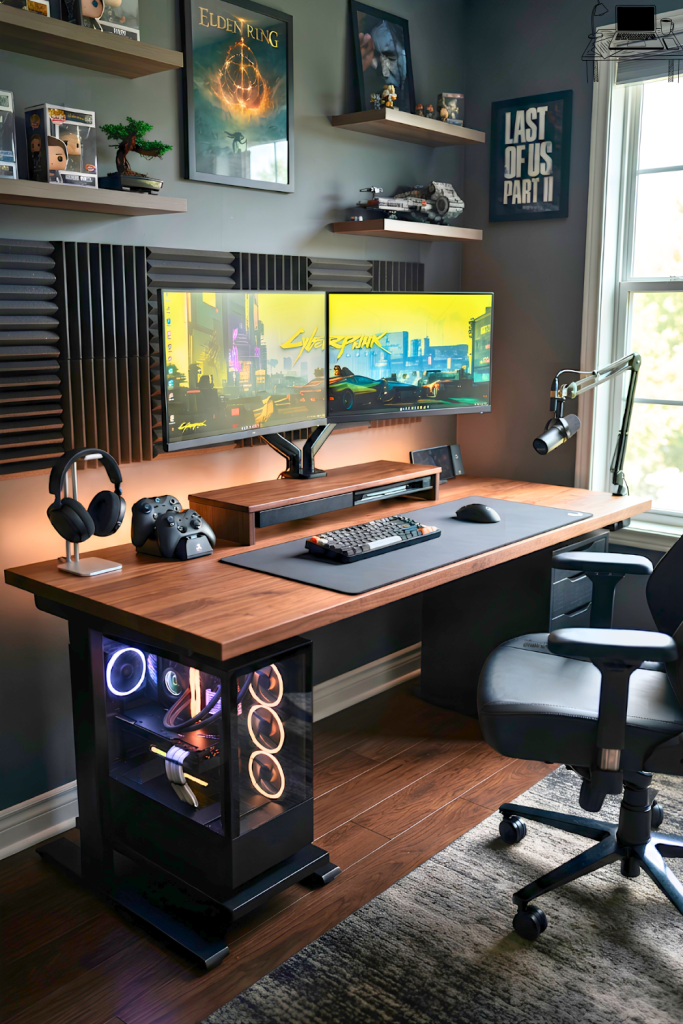
The final touch for any gaming setup is its aesthetic. Making your dual monitor desk look good is just as important as making it functional. This involves choosing colors, styles, and accessories that match your personal taste.
Think about a theme. Do you prefer a minimalist, clean look? Or are you into a more vibrant RGB-filled setup?
You can achieve different looks with your desk material, chair, keyboard, mouse, and even the artwork or collectibles you display. Consistency in color schemes can make a big impact.
For example, a white desk with white peripherals and subtle RGB lighting can create a sleek, modern look. On the other hand, a dark wooden desk with black accessories and red RGB lighting might give a more aggressive, performance-oriented vibe. The key is to create a space that you enjoy spending time in.
Color Palette Consistency: Choose a consistent color scheme for your desk, peripherals, and accessories.
This could be monochromatic, complementary colors, or a vibrant RGB theme. Consistency helps create a cohesive and visually pleasing setup.
Minimalist vs. Maximalist: Decide whether you prefer a clean, uncluttered desk (minimalist) or a desk filled with gear and decorations (maximalist).
Both styles can look great, but the approach to organization and item selection will differ significantly.
Personal Touches: Add personal items like figurines, artwork, or plants to make the space feel unique and inspiring.
These elements reflect your personality and can make your gaming station feel more like a personal sanctuary.
Frequently Asked Questions
Question: How far apart should my dual monitors be?
Answer: Generally, you want your monitors close enough so that the gap between them is minimal or nonexistent. Many people place them edge-to-edge, or with a very small space, to create a more unified display area. The goal is to reduce head or eye movement needed to scan between them.
Question: Can I use monitors of different sizes for a dual setup?
Answer: Yes, you can use monitors of different sizes. However, it’s often more visually pleasing and practical if they are similar in height when adjusted. You might want to place the larger monitor as your primary display.
Software settings can help manage scaling between them.
Question: Is it better to have one ultrawide monitor or two standard monitors for gaming?
Answer: Both have pros and cons. An ultrawide offers a more immersive, seamless field of view for games that support it. Two standard monitors offer more versatility for multitasking, running multiple applications, and displaying different content simultaneously.
For pure immersion in supported games, ultrawide can win; for flexibility, dual monitors are often preferred.
Question: How much weight can a typical gaming desk hold?
Answer: Gaming desks vary greatly, but most sturdy desks designed for gaming can hold between 100 to 200 pounds or more. Always check the manufacturer’s specifications for the specific desk you are considering. It’s wise to choose a desk that can comfortably handle the weight of your monitors, PC, and other accessories.
Question: Should my secondary monitor be the same refresh rate as my primary?
Answer: For gaming, it’s ideal if both monitors have similar high refresh rates for smooth visuals. However, if your secondary monitor is only for browsing or non-gaming tasks, it doesn’t strictly need to match your primary gaming monitor’s refresh rate. You can often set different refresh rates for each display through your operating system or graphics card software.
Building your ideal dual monitor gaming setup doesn’t have to be hard. Focus on comfort, space, and organization. With these tips, you can create a cool and functional gaming desk you’ll love using every day.